Key Takeaways
- By linking your Ledger hardware wallet to MetaMask, the user will be able to use any supported Ethereum networks while securing their private keys on their hardware wallet.
- In terms of how they work, MetaMask browser extension connects with a USB connection while MetaMask Mobile uses Bluetooth in the case of Ledger Nano X.
- You must first update your Ledger device, download Ledger Wallet (formerly Ledger Live) and the Ethereum app on your Ledger to connect it with your MetaMask account.
Connecting your Ledger device to MetaMask gives you access to various decentralized applications (dApps), but at the same time secures your private keys with Ledger technology. This means that the user can interact with the dApps using MetaMask while Ledger will take care of signing any transactions.
The connection of your Ledger wallet to MetaMask can be done using either a USB or Bluetooth connection, depending on the Ledger device you have.You do not need to put in your recovery phrase in order to link your Ledger wallet to MetaMask.
Supported Ledger Devices and Apps
For its browser extension, MetaMask is compatible with Ledger wallets as well as with Ledger Nano X via a wireless Bluetooth connection on the MetaMask Mobile app.
MetaMask and Ledger have both confirmed that the Ledger Nano X is compatible with mobile connections at least. Ledger Nano S Plus, on the other hand, is not Bluetooth-compatible.
According to the MetaMask hardware wallet guide, Ledger may be a “direct connection wallet” as per its connectivity options, but the options vary depending on how the devices function with the MetaMask application.
Before getting started, make sure that:
- Your Ledger device has the connectivity option you plan to use.
- MetaMask has been installed and is also updated.
- Your computer has installed Ledger Wallet so that the browser extension works properly.
- Your Ledger wallet has been unlocked and set up for use.
- You must have the Ethereum app installed on the Ledger.
Keep in mind that MetaMask only works with Ledger accounts using an EVM, so only compatible Ethereum accounts or EVMs will work with MetaMask.
Updating Ledger Wallet (Formerly Ledger Live)
Before connecting your device from Ledger to MetaMask, make sure to update it prior. Having old firmware or old browsers can mean troubles in connecting the devices.In order to upgrade the software on your Ledger, the first step is to activate the Ledger Wallet application on your computer.
Next, connect the Ledger using the USB cable. The Ledger Wallet application will check if any firmware update is required. After the completion of firmware checking using Ledger Wallet, then start the process of upgrading.
The next step is to access My Ledger in the Ledger Wallet application. The reason for performing this step is to download or upgrade the Ethereum application on the Ledger device. It should be ensured that the latest version of the firmware and the Ethereum application is installed on the Ledger device.
Step by Step: Installation of MetaMask Extension
For installing the MetaMask application and to connect to Ledger wallet, follow the following steps:
1) Go to the official MetaMask website and open the download page. Choose the Chrome browser option
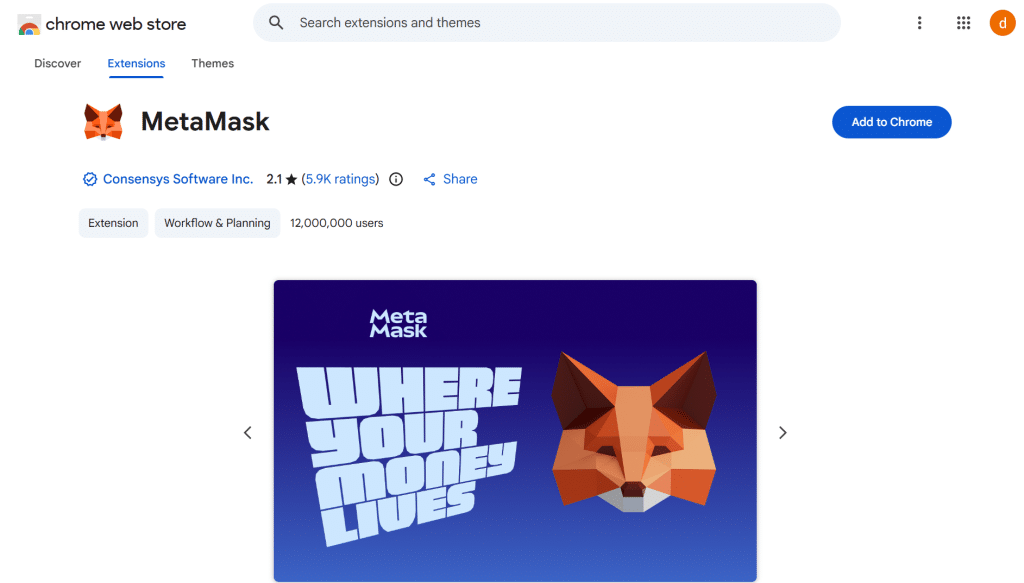
2) Click on the Add to Chrome button to install the MetaMask extension
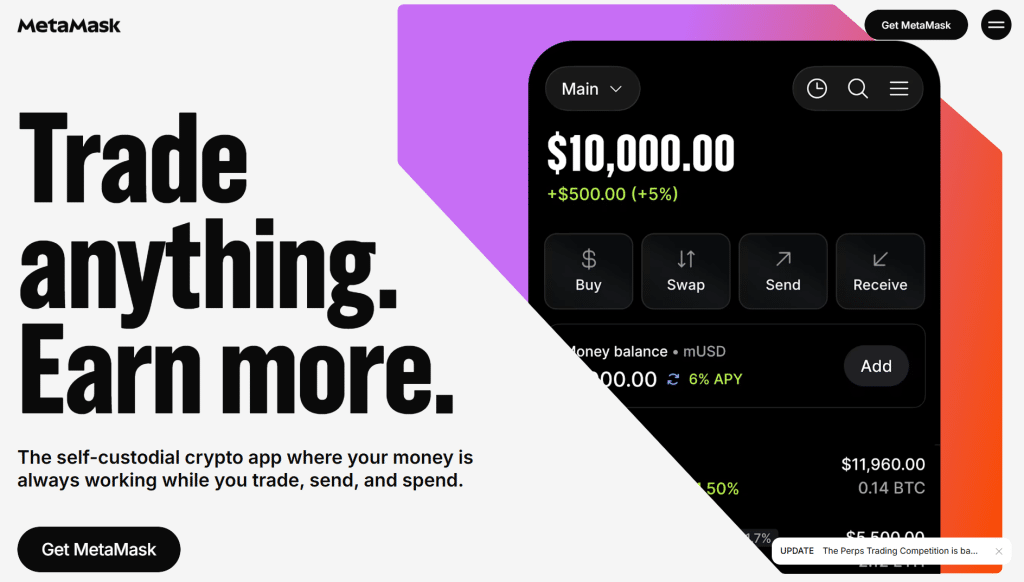
3) Click on the Create New Wallet button and select the Use Secret Recovery Phrase
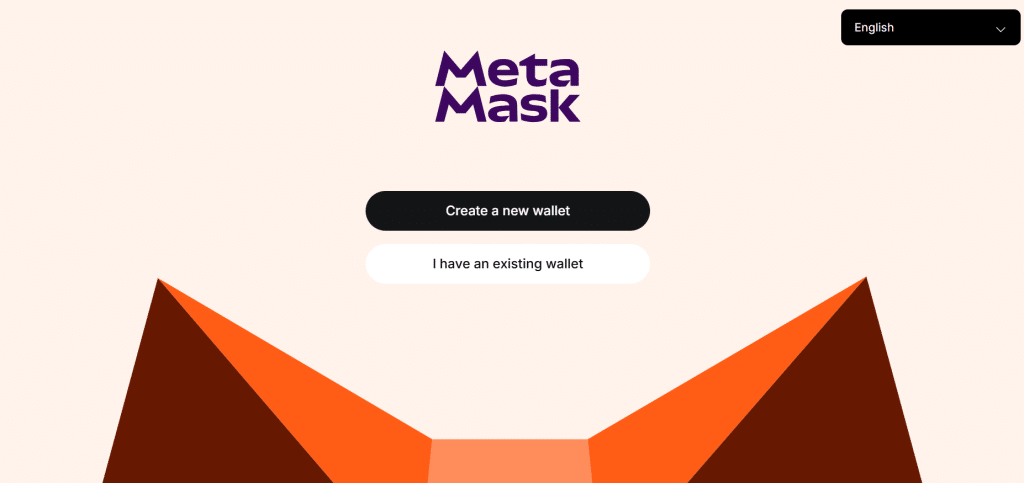
4) Create a password and click on the Create Password button
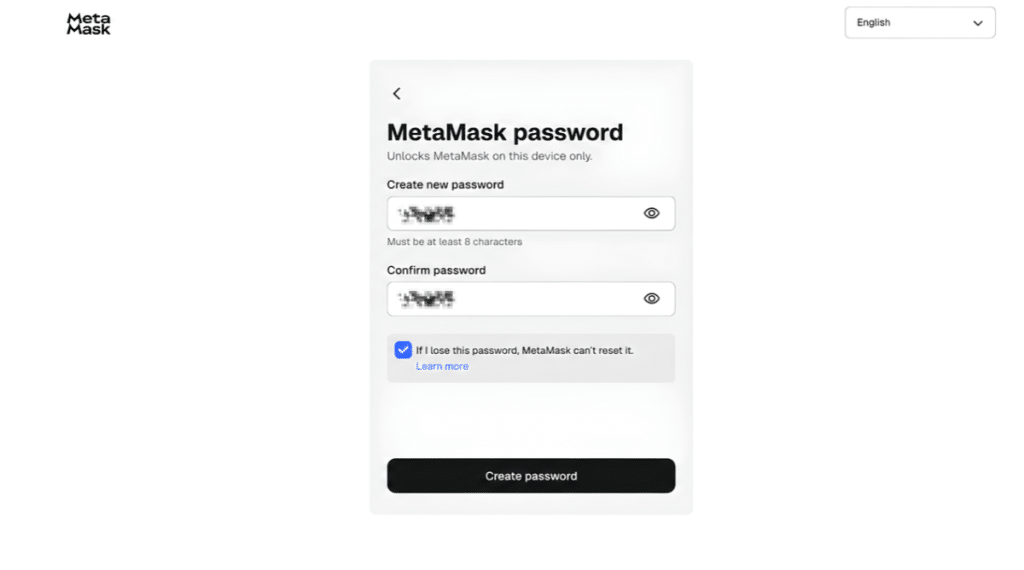
5) Select the Remind Me Later option since you will be using a Ledger wallet, and click on the Continue button
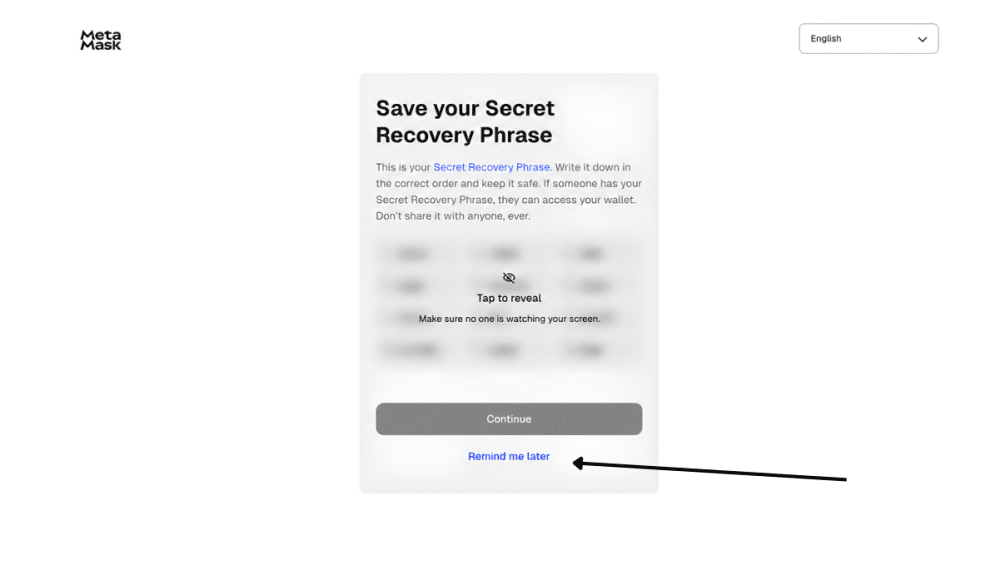
6) In MetaMask, click on the Account Settings option and select Add Wallet, then the Add Hardware Wallet option
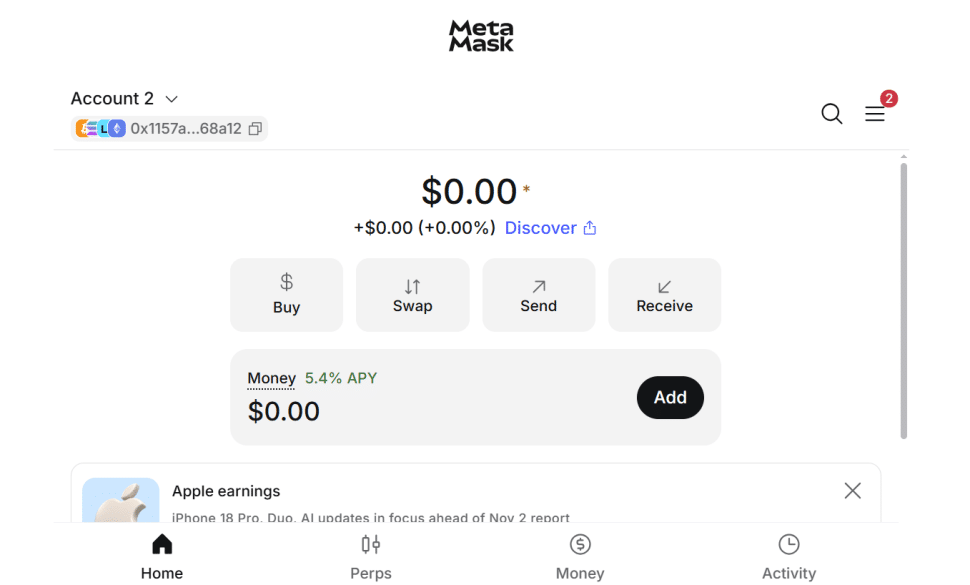
7) Select the Ledger option, click on the Continue button, and attach the USB using the HID pop-up
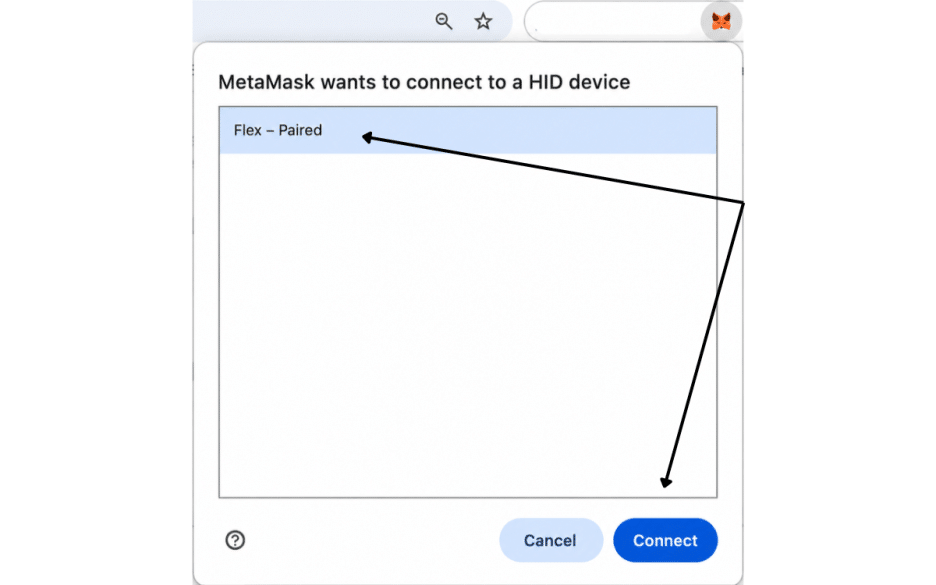
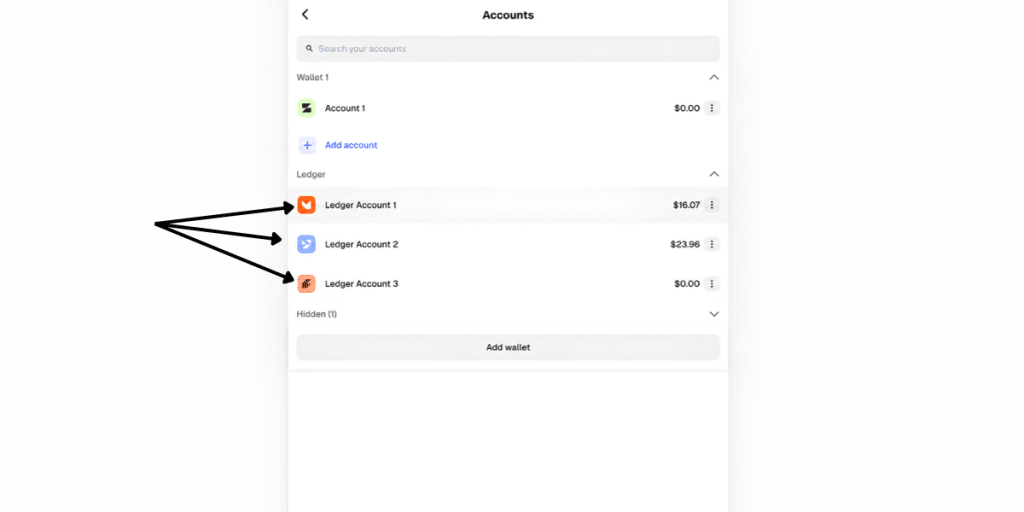
8) Select the Ledger account from the connected devices and unlock it
When to Activate Blind Signing, and What Are Its Risks?
You must turn on blind signing feature if you would like to use some decentralized apps from, for example, the MetaMask wallet like decentralized exchanges and other applications relying on smart contracts. In order to turn on the blind signing feature on your Ledger device which comes with the required functionalities:
- Connect and switch on the Ledger device.
- Open Ethereum app.
- Go the application’s settings
- Find the method blind signing
- Turn it on according to necessity.
Using blind signing feature also comes with risks. You may approve some operations without verifying transactions, which could lead to approving of the fake transaction.
Make use of the blind signing feature only in case it is necessary. In order to be on the safe side, double-check transaction information and turn blind sign feature off after every use of Ledger and MetaMask connection if you used it.
How to Troubleshoot Connection Issues
Connection issues could arise due to old systems being used, browser settings and permissions, USB problems, or wrong equipment setup.
Before starting to deal with more complicated issues, ensure that your Ledger is on and in proper operation and that all necessary.
Device Recognition Issue
In case you face difficulties while utilizing your MetaMask with Ledger wallet, the first thing you need to do is to verify whether you are correctly connecting the device via USB data cable and are allowing Ledger and opening the Ethereum application.
In addition to that, ensure that you terminate all other applications including Ledger Wallet prior to using your wallet and check if there have been any updates available for your Ledger hardware. It should be noted that the use of Firefox browser is advised against in this situation and it is recommended to utilize Chrome browser or any browser based on Chromium engine.
It is advisable to verify whether HID device has all the necessary permissions to function effectively on Chrome before reconnecting your Ledger wallet or using another data cable or you may contact Ledger or MetaMask support.
Blocked Transactions
If your transaction got blocked, it is essential to determine what may have led to that by finding out if the Ledger gave you any error or you clicked on the Ledger to decline your transaction.
A number of reasons may cause your transaction to fail or get blocked including an overloaded network, low transaction fee, and incorrect data regarding the transaction, or smart contract problems.
To determine transaction status please follow these steps:
- Go to MetaMask and check the transaction status. If your Ledger has denied your transaction, verify your transaction details and only resend it if you plan on going ahead.
- If a transaction is in progress, we recommend employing a blockchain explorer to check its status.
- Verify that the right blockchain and the associated account are being utilized.
- Check whether there is sufficient gas for the transaction.
- If the transaction has stalled, go over the process in MetaMask before considering sending more gas.
- Don’t authorize multiple transactions without checking the status. You could end up signing transactions that don’t matter.
Frequently Asked Questions
We have compiled a list of commonly asked questions on how to connect Ledger to MetaMask.
Are My Funds with Ledger or MetaMask?
Your funds do not reside on Ledger or MetaMask. They are stored on the blockchain and you will only be able to access them if you have your private keys. In case of using MetaMask, Ledger will act only as a hardware wallet that is used for signing the transactions.
To authorize transactions from the wallet that is connected to your MetaMask account, you will still need to have access to your Ledger wallet.
Is there a fee for connecting Ledger and MetaMask?
No, there are no fees charged for connecting Ledger with MetaMask. Nevertheless when making any cryptocurrency transaction or using a smart contract, some network fees may lead to additional costs. The fees may vary based on different operations and blockchain.
Is it possible to connect several Ledger accounts to MetaMask?
Yes, several accounts can be connected to MetaMask. When setting something up, you will need to indicate which Ledger account is to be used.
What does it mean to unlink Ledger from MetaMask?
Unlinking Ledger will not mean that you will lose your coins or delete your blockchain account. Your money stays on the blockchain, and the keys will be secure in your Ledger.
More crypto guides: Guides hub · What is cryptocurrency · What is a seed phrase · 7 crypto scams to avoid