Key Takeaways
- There are a lot of different options when it comes to choosing which Web3 wallet you want to set up the Polygon network, and users really like MetaMask because they find it very user-friendly and Polygon is widely supported.
- By default, your MetaMask wallet is connected to the Ethereum mainnet and you will need to change it to the Polygon network to access its native decentralized apps (dApps) on the wallet platform.
- Depending on the version of your MetaMask installed, sometimes or most often the wallet platform does not really help its users with how to add a custom network to the wallet.
The process of adding the Polygon network to your wallet may be slightly different depending on the version of the wallet you are using. But don’t worry, this is normal, and this happens all the time for MetaMask users.
In order to add the Polygon network to MetaMask, you will need the custom RPC URL, chain ID, and Network name.
If you still have not set up the Polygon network in your MetaMask wallet, you may check our guide below.
The fastest way: add Polygon in one click
Did you know there’s a faster and easier way of adding the Polygon network to your MetaMask wallet in one click? You also don’t need to know the exact details of the network. Here’s how.
Assuming you already have a MetaMask wallet, go to the homepage of the platform, go to settings and click “Manage tokens.”
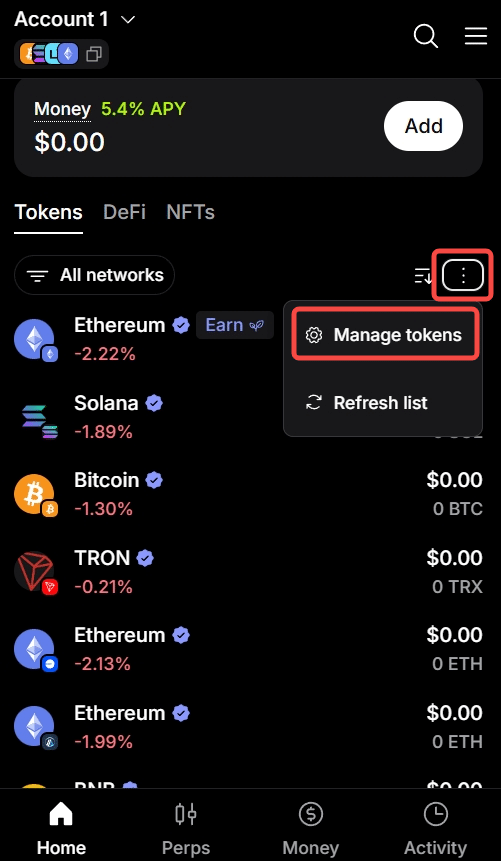
From there, MetaMask will list all the networks and you just have to turn POL on.
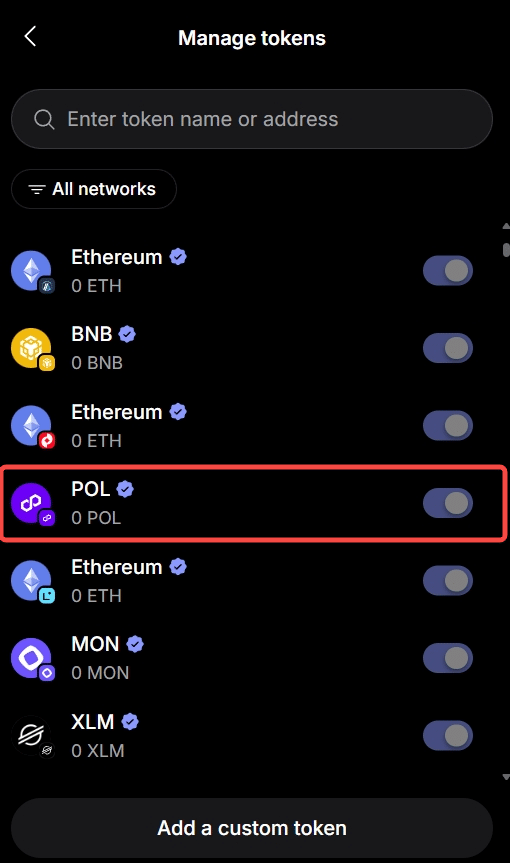
If this is your first time using the MetaMask wallet, it is now easy because the wallet platform has already turned on the Polygon network for you.
Before, we needed to do it manually and it was a hassle on our part as old users of MetaMask, so you new users are very lucky!
Add Polygon manually
If you are one of those MetaMask users who aren’t so lucky, depending on your version, the wallet platform may not have the Polygon network turned on.
But no worries, it’s not a bug or anything; it’s really just the version of your MetaMask and other factors that come with it. But this guide on adding Polygon manually also applies to users who have their Polygon network already turned on so in case there’s a need to add a new custom network to MetaMask, you will know how to handle it in the future.
Polygon network details
If Polygon does not show up in your MetaMask wallet, you can add it manually with this exact information. Make sure the values you enter are accurate to avoid future problems with your MetaMask.
| Information | Values to input |
| Network name | Polygon |
| Token contract address | 0x455e53cbb86018ac2b8092fdcd39d8444affc3f6 |
| RPC URL | https://polygon.drpc.org |
| Chain ID | 137 |
| Token decimal | 18 |
| Token symbol | POL |
| Block explorer | https://polygonscan.com |
Step by step in the MetaMask extension or browser
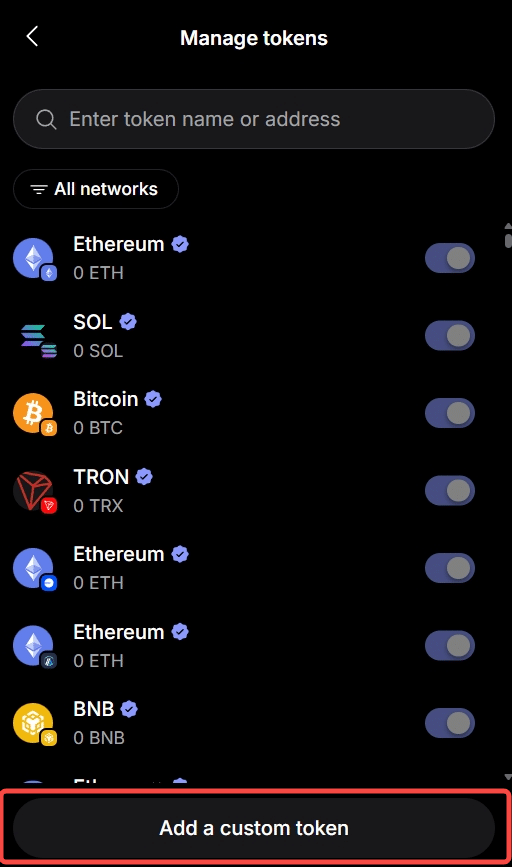
In the browser extension or mobile application, go back to the MetaMask homepage, open Settings, and click “Manage tokens.” After that, click “Add a custom token.”
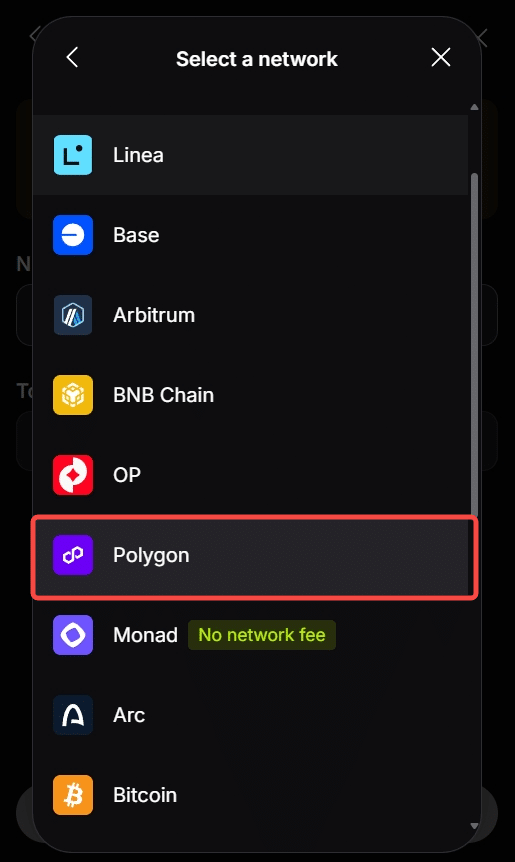
Then it’s going to ask you for the network. Select Polygon.
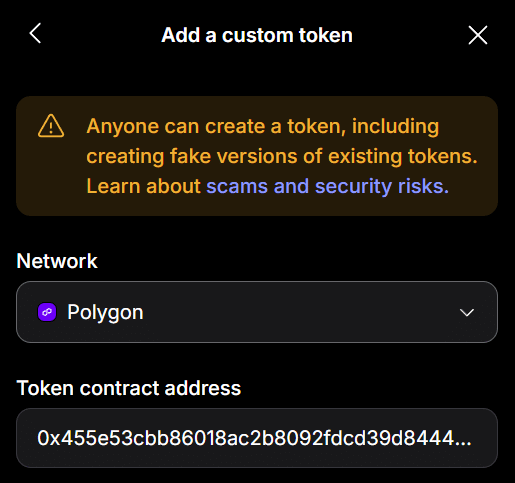
Then after that, it’s going to ask for a token contract address. Copy this and paste it into your MetaMask: 0x455e53cbb86018ac2b8092fdcd39d8444affc3f6
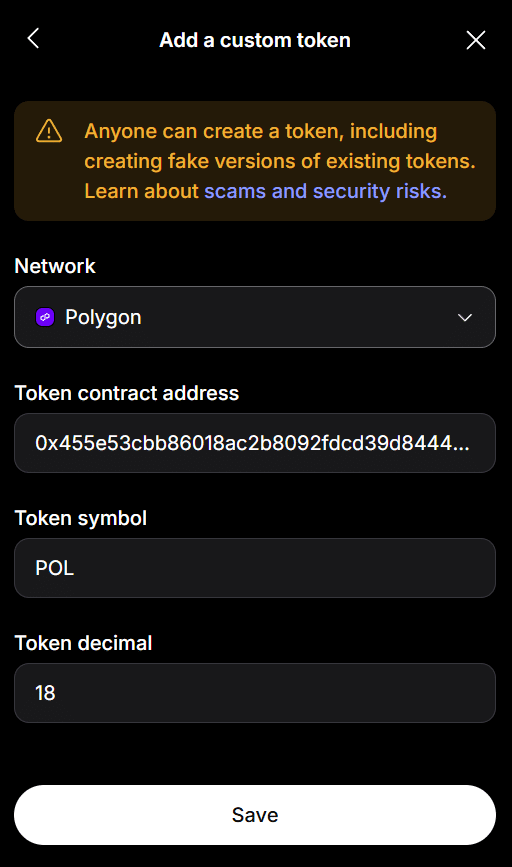
After you paste the contract address, two more information fields will appear. Enter the token symbol and token decimals. The token symbol is POL, and the token decimal is 18. After that, click “Save.”
After confirming, you will get a pop-out message saying “POL was successfully added!”

How to get POL for gas
There are two ways to add POL to your MetaMask wallet. If you already have POL tokens on a centralized exchange, you can transfer them from your CEX account to your MetaMask.
If you would rather have your POL directly in your MetaMask, you can purchase POL tokens with a debit or credit card.
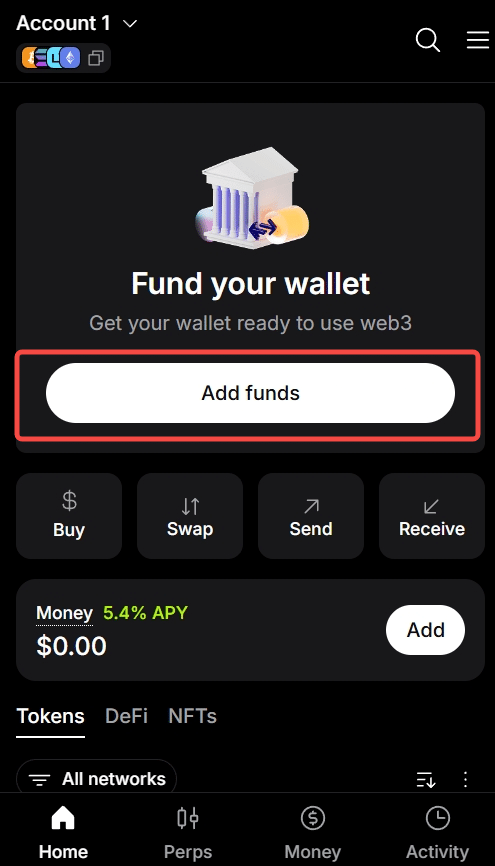
On the homepage of your MetaMask wallet, click “Add funds.”
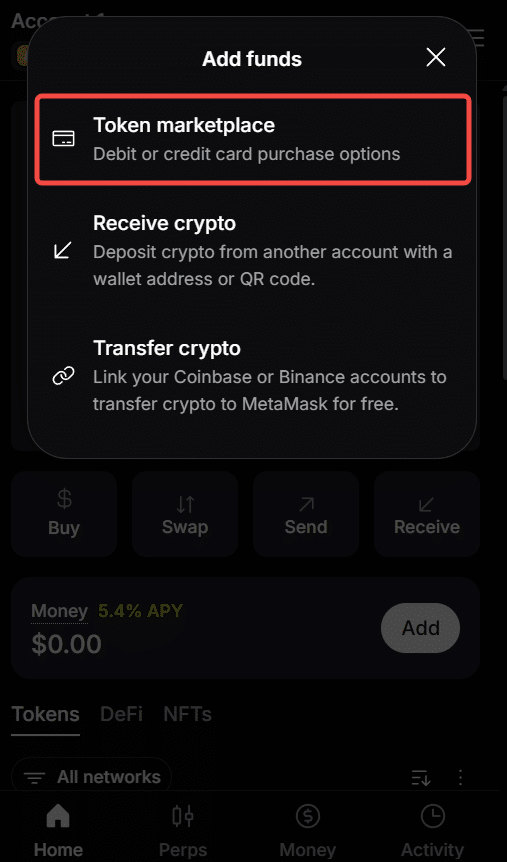
Next, MetaMask will give you three options which is token marketplace, receive crypto, or transfer crypto. Since we want to buy POL tokens using a debit or credit card, click “Token marketplace.”
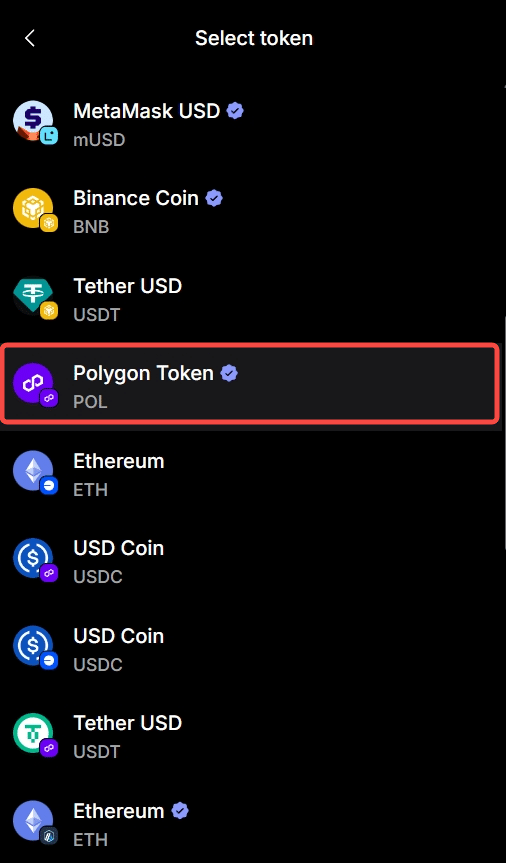
Next, select the token you want to buy. In this case, it’s POL.
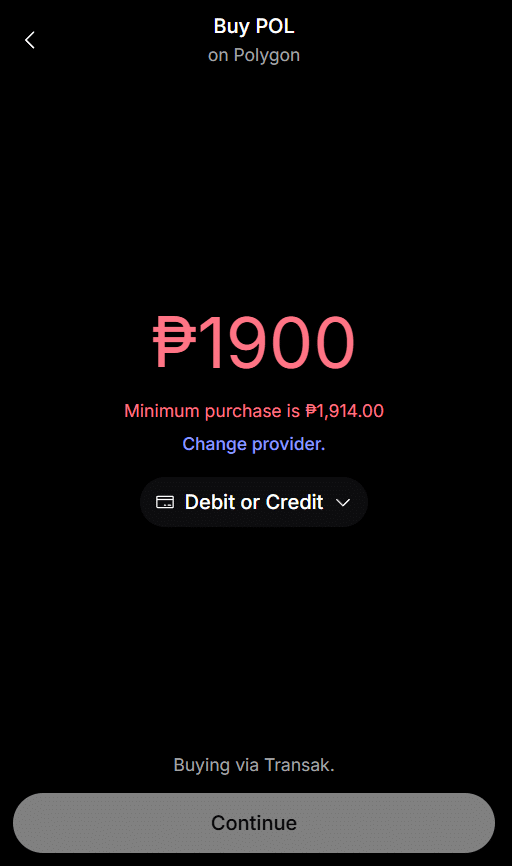
When buying POL tokens or any crypto on MetaMask, the minimum purchase is $30 or ₱1,914 in my local currency. After setting the purchase amount, click “Continue.”
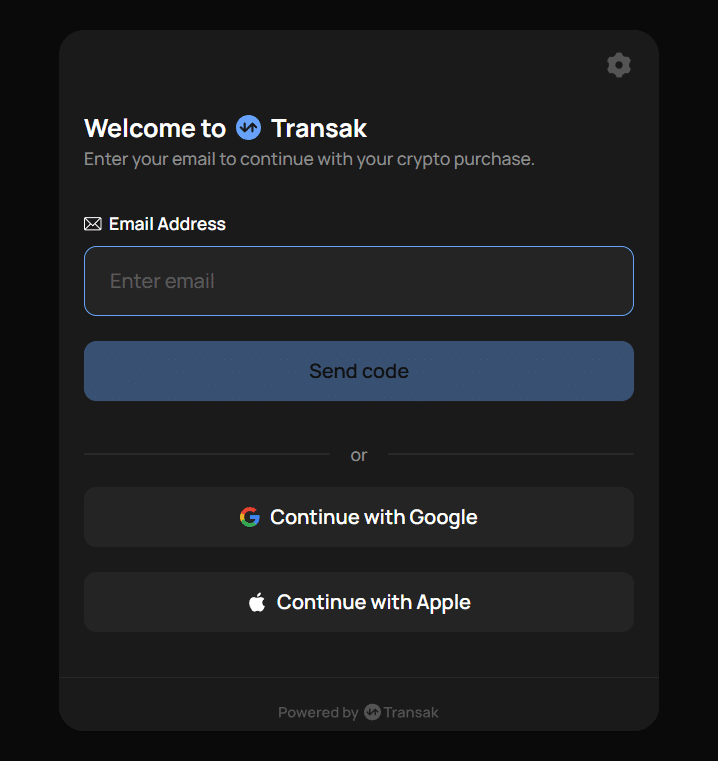
Afterward, you will be redirected to a new tab and will be asked to enter your email address for the code.
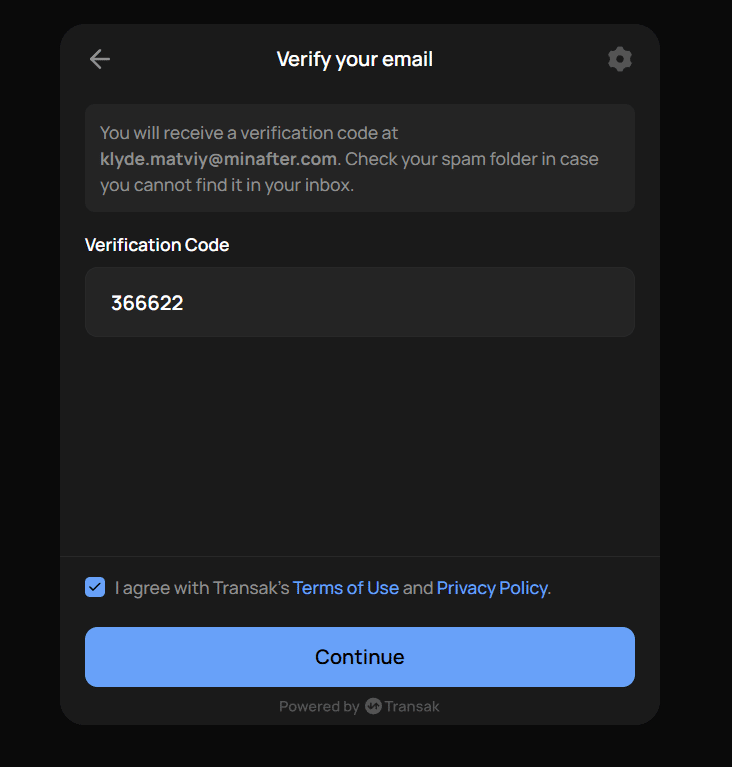
Enter the verification code and don’t forget to tick the “I agree with Transak’s Terms of Use and Privacy Policy.”
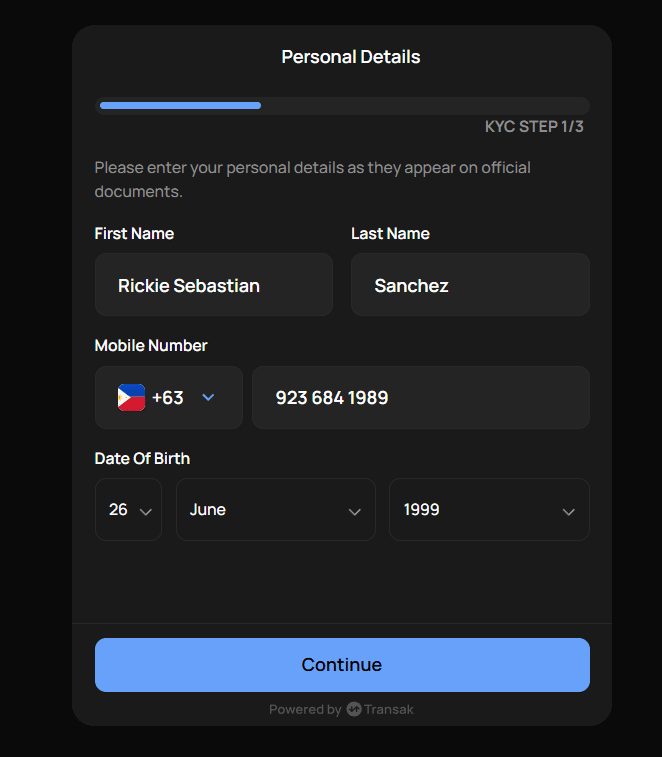
Then complete your personal details and finally pay with a debit or credit card.
If you have noticed by now, the process is expensive and tedious when buying directly in the wallet, so I recommend just buying POL tokens on an exchange and sending them to your MetaMask wallet instead. The minimum purchase amount for buying POL tokens on a CEX is just $10.
Add native tokens on Polygon, such as USDC
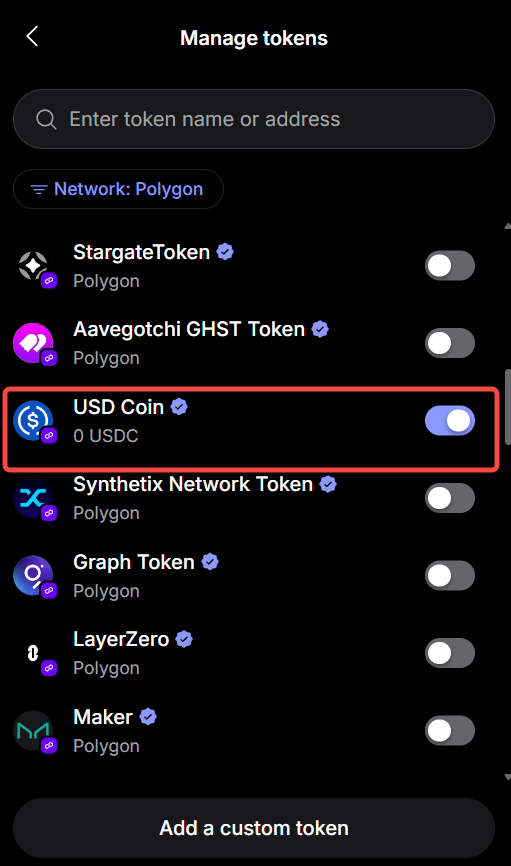
Here’s how to add tokens on the Polygon blockchain on MetaMask. As usual, go to the settings and click “Manage tokens.” Next, filter your search to the Polygon network.
After that, select the Polygon-native tokens you want to add like the USDC stablecoin on the Polygon network. Toggle it on and click Save.
Troubleshooting: wrong symbol, RPC errors, missing balance
All you need to do is follow the table I provided at the start of this guide. Most users won’t get an error if they just follow the procedure correctly.
If you are seeing missing balances, you are either on the wrong network in your MetaMask wallet, or your assets are not on the Polygon network.
Frequently Asked Questions
Here are answers to adding Polygon (POL) to the MetaMask wallet.
What is the Chain ID for Polygon network in MetaMask?
The Chain ID for the Polygon network is 137. You will need to enter this when manually adding the Polygon network to the MetaMask wallet, along with the correct RPC URL and other network details.
Do I need ETH or POL to pay for gas fees on Polygon?
Make sure to have some POL tokens in your wallet before making any transactions in your MetaMask wallet, as you cannot use ETH for gas fees on Polygon.
Can I use the same wallet address for both Ethereum and Polygon?
Yes, your MetaMask wallet address is the same on Ethereum and Polygon networks. However, your token balances will be different on each network, and you will need to bridge your assets to transfer between the Ethereum and Polygon networks.
More crypto guides: Guides hub · What is cryptocurrency · What is a seed phrase · 7 crypto scams to avoid