Key Takeaways
- Trust Wallet was founded in 2017 with the aim of simplifying and democratizing crypto and making it accessible to everyone.
- Trust Wallet’s total user base is now at 220 million, which is currently the most widely used Web3 wallet app in the world among its competitors.
- Notably, Trust Wallet did a major redesign in 2023, making the Web3 wallet more modern in terms of design and of course bringing more people safely on-chain.
I remember when Trust Wallet was just a regular self-custodial wallet, competing for market share in the Web3 and DeFi space.
Fast forward to 2026, the Web3 wallet app now consists of 220 million users all over the world with just a simple goal, and that is keeping users safe on-chain.
Since Trust Wallet is the most well-known Web3 wallet brand in the crypto space right now, you might be wondering how to set one up.
This article will provide a simple guide that anyone can follow on how to use Trust Wallet on a personal computer, along with some recent screenshots and tips and tricks if you encounter some bugs along the way.
Can you use Trust Wallet on a computer?
The short answer to that is yes. You can download Trust Wallet on Android, iOS, and PC, whether you are on Windows or Mac.
Notably, I will be providing three ways on how to download the wallet, giving you more options for how you would want to download it.
Method 1: Trust Wallet browser extension (recommended)
On to our first method, which is the safest and recommended approach, especially if you are still a beginner in the space.
Install it from the official store
Go to https://trustwallet.com/ and select “Download.”

Next, click Browser since we are downloading Trust Wallet on PC and click “Get browser extension.”
After that, you will be redirected to the Chrome Web Store along with the download page. Make sure to verify it first before adding it to your browser extensions.

Import your existing wallet
After downloading Trust Wallet, you have options to create a new wallet or import a wallet.

If you already have a wallet, click “I already have a wallet.” From there, create a password.
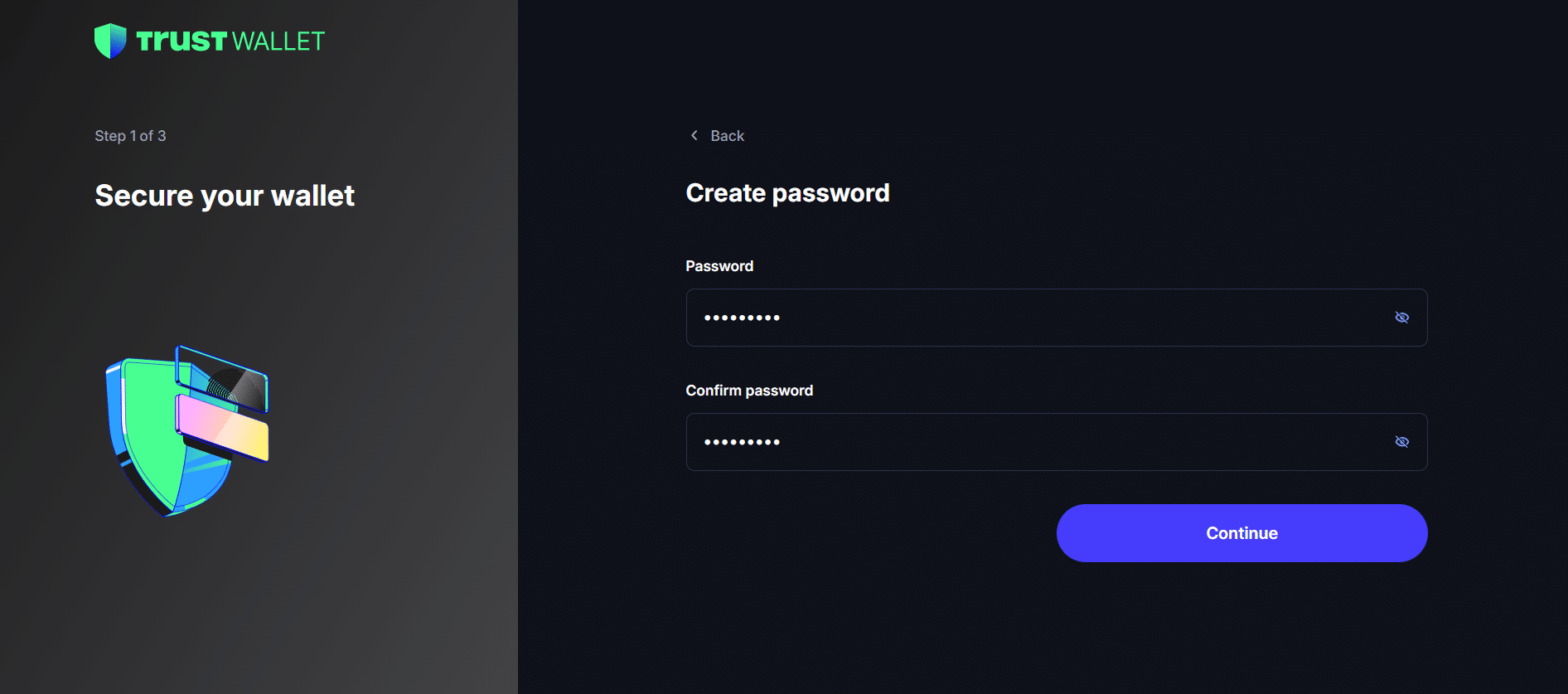
After, Trust Wallet will then ask which existing wallet you want to import. For the sake of this guide, let’s click Trust Wallet Mobile.
Then select a method for how you are going to import it; do the recommended one to make it easier for you to import your seed phrase.
Assuming you also have Trust Wallet on your phone, just simply scan the QR shown on the screen to complete the scan.
If you don’t have Trust Wallet on your phone, head back and select “Import with Secret Phrase or Private Key” instead.
Creating a new wallet
In creating a new wallet, you just need to click “Create new wallet,” and then your wallet will be ready within seconds!

You can write your seed phrase later in the Settings after the onboarding process.
Pin it and connect to a dApp
Now that everything is ready, top up your wallet with some crypto and connect to a decentralized application like PancakeSwap.

After clicking Connect, approve it on the next pop-out.

Method 2: Connect the mobile app with WalletConnect
Let’s say you don’t want to download Trust Wallet on your PC; as long as you have the mobile app of the wallet, you can connect a dApp through WalletConnect.
Go to the website of the dApp. In this case, I will use Uniswap.
Open your Trust Wallet on your phone, just scan the QR code and you are done!

Method 3: Android emulator
This may be the least recommended method. First is that APKs are susceptible to bugs and there is no in-app security guarding the app. Second is that users may not be able to enjoy the latest features and bug fixes when Trust Wallet releases an update. Third, Android phones are more at risk of hacks than iOS phones.
But if you choose to go with this method, go to the official Trust Wallet page again using your Android phone and click “Trust APK.”

After downloading, just run the APK file and wait for it to finish.
Which method should you use?
Now that I have discussed the three methods for downloading Trust Wallet, here’s a comparison table to organize the information and help you decide.
| Method 1 – Browser Extension | Method 2 – WalletConnect | Method 3 – Android APK | |
| Recommendation | Highly recommended | Recommended | Not recommended |
| Setup | Install from the Chrome Web Store | No installation is required. Just scan the QR code from your phone. | You need background knowledge in downloading third-party apps like Bluestacks in order to run the APK version of Trust Wallet |
| Security | Trust Wallet is encrypted locally in your web browser | Your private keys do not leave your phone. The desktop browser only acts as a display window | High exposure to malware and no in-app security |
| dApp connection | A pop-out appears on the upper right every time you are about to approve a transaction | You need to approve every transaction on your phone | APKs may have laggy performance relative to the specs of your Android device |
| Updates and support | Updates are automatically handled by the Chrome Web Store | The app can be updated on the Apple App Store and Google Play Store | You need to manually reinstall the latest APK over time |
Overall, choose Method 1 if you want the fastest experience in using Trust Wallet on PC. Choose Method 2 if you don’t want to download Trust Wallet on PC and would rather just connect through WalletConnect. Lastly, avoid Method 3 unless absolutely necessary.
Keeping your wallet safe on a PC
Did you know that keeping a Web3 wallet in your browser is already a risk itself?
A lot of people have been drained by connecting to suspicious sites, only for their funds to be taken from them.
But if you really need to use a Web3 wallet on your computer, the least you can do is not use it as your main wallet for storing crypto. Keep a separate wallet that is not logged in anywhere else for your long-term holdings.
I also recommend bookmarking the official dApps you use frequently to avoid getting phished.
How to spot fake extensions
One way to avoid fake extensions is to verify whether the Web3 wallet you are adding to your browser is actually verified. See the image below:

Normally, you will see a verified badge next to the developer.
Recovery phrase rules
Regarding recovery phrases in Trust Wallet, the twelve words must be in the same sequence. You cannot mix them up even if you have all the right words.
Troubleshooting
I have personally used Trust Wallet even before the major brand redesign in 2023 and more often than not, you may have encountered some slight hiccups when using the Web3 wallet. So here are some ways to troubleshoot them.
The extension won’t open or shows the wrong balance
In my experience, this bug was already here even before the major redesign. This is typically normal and probably annoying at the same time. In some cases, it shows the wrong balance whenever you have a slow internet connection. I recommend restarting your Wi-Fi, but don’t worry, your funds are safe in Trust Wallet.
Missing tokens or networks
Usually, you would need to manually add the lesser-known tokens to add them to your wallet’s homepage. In order to do that, click the settings icon.

Next, click “Import crypto.”

Select a blockchain network.
Let’s say we are finding a token asset on the BNB chain; find the exact contract address and paste it on Trust Wallet to add the token.

Frequently Asked Questions
Got more questions about Trust Wallet? Skim through the most frequently asked questions below.
Is there a Trust Wallet desktop app?
No, Trust Wallet is available only in the form of a browser extension. Anyone telling you to download a Trust Wallet desktop app is trying to scam you.
Can I use the same wallet on my phone and PC?
Yes, you can even use the same wallet on both mobile and PC at the same time.
Does it work on Mac and Linux?
Trust Wallet works on Mac and Linux as long as you have Google Chrome or Brave Browser installed on your system.